
Split a CSV file by column on Mac.
On Mac, use SENOREL's Split task to group a compatible CSV or flat XLSX table by Region, Warehouse or another column. Preview the plan, then create separate output files without scripts or repeated filtering. The original stays unchanged.
Split works with table rows, not arbitrary complex Excel layouts. It is not a way to preserve a workbook's formulas, macros or external connections.
How to split a CSV by a column
Choose the source file
Open SENOREL's Split task and add a compatible CSV or flat XLSX file.
Select a grouping field
Choose the column that identifies the groups, such as Region, Warehouse, Store or Department.
Check the split plan
In Preview, check the split column, output-file count, blank-group rows, row totals and any warnings. Don't run the task if the plan looks wrong.
Run and check the outputs
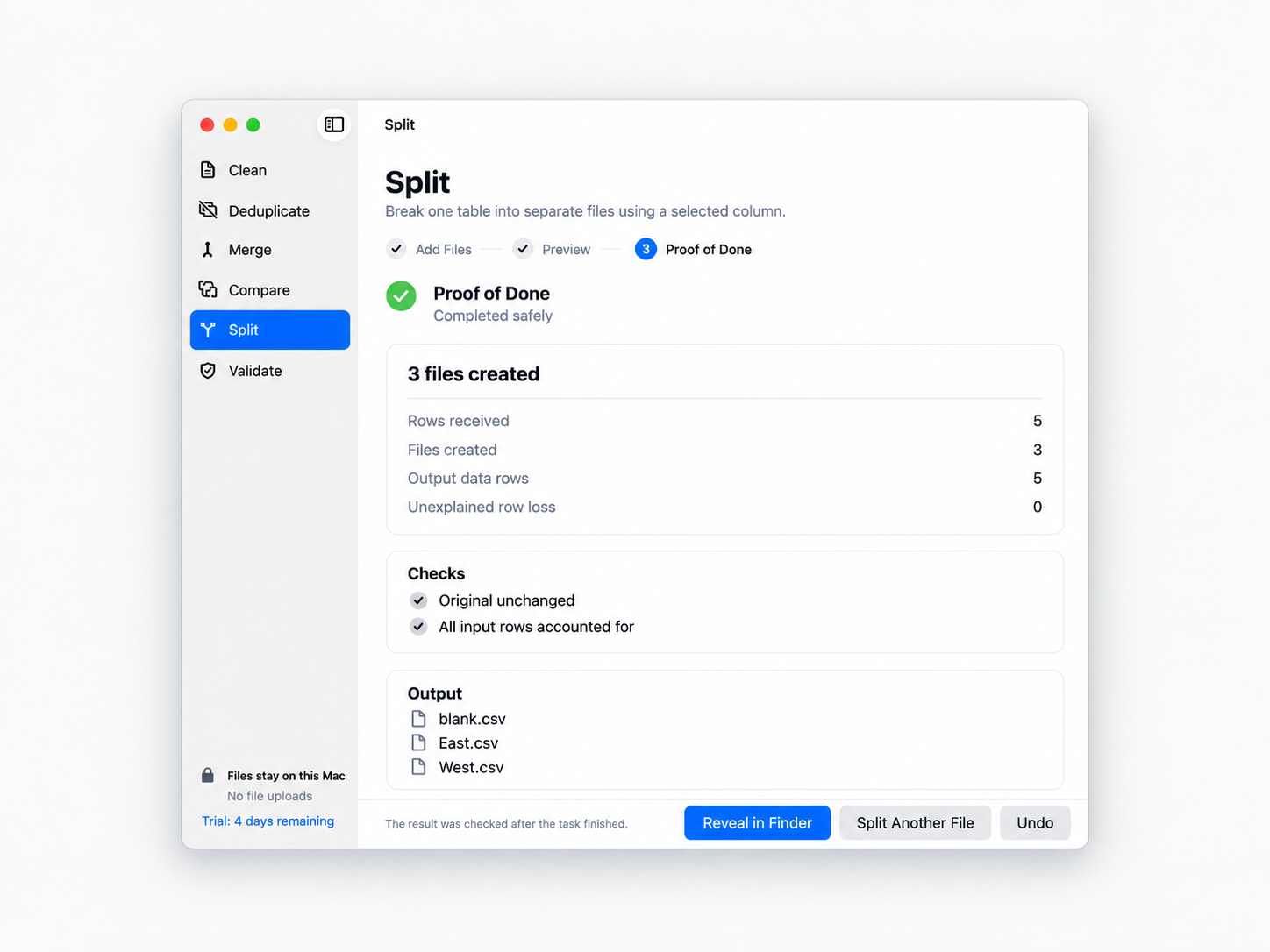
Save the separate files, then check the result summary and Proof of Done. SENOREL leaves the source file unchanged.
Example: split five rows by Region
This synthetic CSV has a Region column. The table below shows that column's values in source order, including the empty row.
| Data row | Region |
|---|---|
| 1 | West |
| 2 | East |
| 3 | West |
| 4 | (blank) |
| 5 | West |
East.csv
1 data row
West.csv
3 data rows
blank.csv
1 data row with an empty Region
1 + 3 + 1 = 5 rows accounted for. The saved native run produced these three files without changing the source. The blank row remains in blank.csv; Split does not perform Clean's empty-row removal.
The screenshot confirms 5 input rows, 3 files, 5 output rows and zero unexplained row loss for this example. The individual file counts above were checked against the saved CSV outputs. Your group names and counts depend on your data; this is not a claim of unlimited groups or guaranteed results for every file.
When splitting by a column is useful
- Save an order export into separate files for individual regions.
- Separate a flat warehouse list by Warehouse.
- Organize a CSV report by Store or Department before sharing the outputs.
Important file limits
SENOREL is designed for common CSV and standard XLSX tables. For complex workbooks containing formulas, macros, pivot tables, Power Query, external links or elaborate layouts, splitting the workbook as-is is not supported. Structured Split is not part of SENOREL's current structured-workbook scope.
If you prefer staying in Excel, you can filter the table by group and save separate files yourself. SENOREL focuses on removing that repeated manual step for compatible data.
Common questions
Where do rows with an empty grouping value go?
In the verified Region example, the empty value goes into blank.csv and its row remains counted. Check Preview's blank-group and row totals, then inspect the completed outputs for your own data. Do not assume an empty grouping value means a row was discarded.
Separate your next regional export.
Choose a suitable grouping column and review the split plan. File processing stays local to your Mac.
View SENOREL on the Mac App Store